YouTube Thumbnail Size Guide: Dimensions, Resolution, and Best Practices
What Size Should a YouTube Thumbnail Be?
The recommended YouTube thumbnail size is 1280 x 720 pixels with a 16:9 aspect ratio. This is the standard that YouTube uses across desktop, mobile, tablets, and smart TVs. If you only remember one number, make it 1280x720.
Here are the full specs YouTube requires:
- Resolution: 1280 x 720 pixels (minimum 640px wide)
- Aspect ratio: 16:9
- File formats: JPG, PNG, GIF, or BMP
- Max file size: 2 MB
- Minimum width: 640 pixels
These specs haven’t changed much over the years, and they apply to every type of video — shorts excluded, which use a 9:16 vertical format.
Why 1280x720 Specifically?
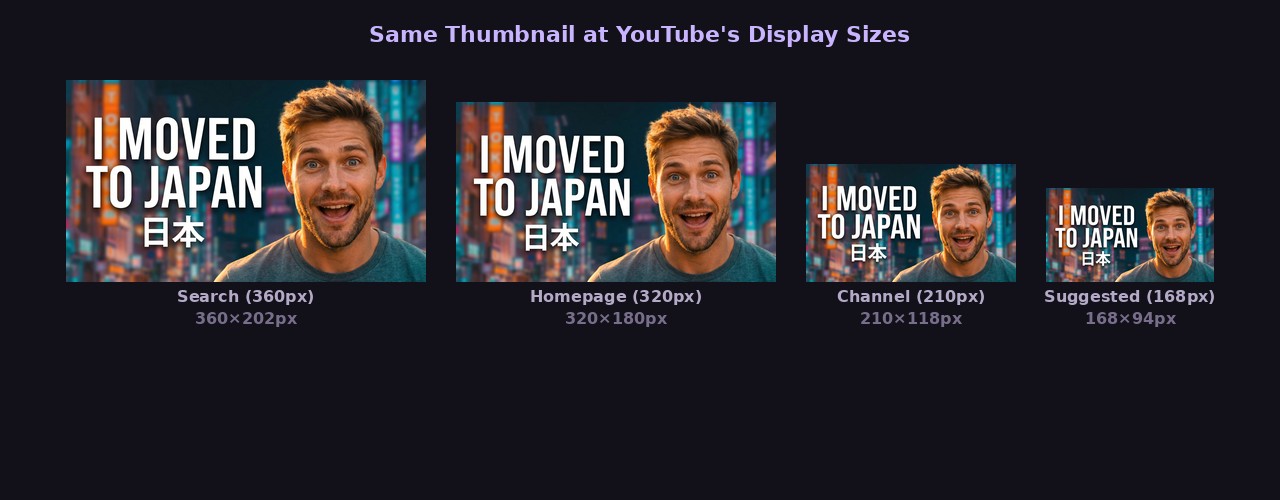
YouTube displays thumbnails at different sizes depending on the device and context. On a desktop search results page, thumbnails appear at roughly 360x202 pixels. On the homepage, they’re closer to 320x180. On mobile, they’re even smaller.
So why upload at 1280x720 if they display smaller? Because YouTube downscales your thumbnail to fit each context. Starting with a high-resolution source means the downscaled version stays sharp. If you upload at 640x360, it’ll look fuzzy on high-DPI screens and when YouTube features your video in larger placements.
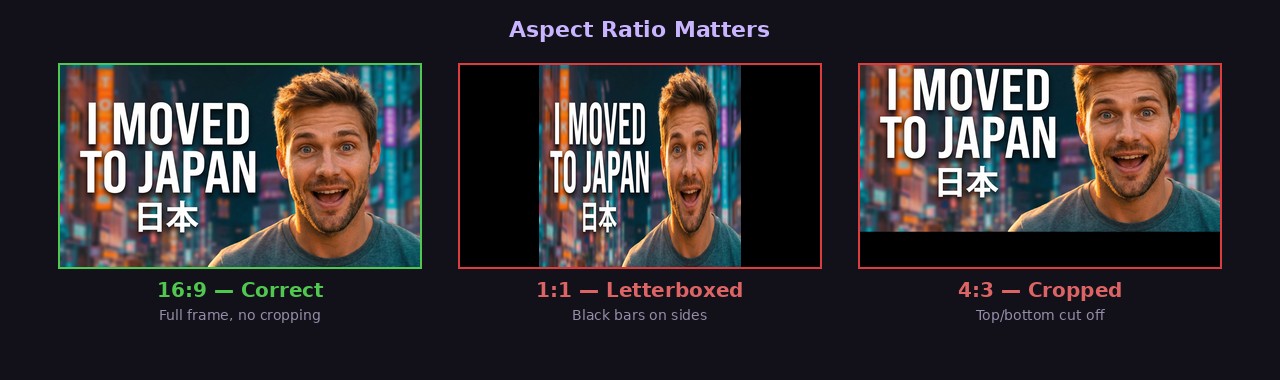
The 16:9 ratio matters because that’s the shape of the YouTube video player. If you upload a thumbnail with a different ratio — say 4:3 or 1:1 — YouTube will add black bars or crop it unpredictably. Stick with 16:9 to control exactly what viewers see.
Can You Go Higher Than 1280x720?
Yes, but YouTube will resize it down to 1280x720 anyway. Uploading at 1920x1080 or 2560x1440 won’t make your thumbnail look better on YouTube — it just increases upload time and file size.
That said, if you’re repurposing thumbnail images for other platforms (blog posts, social media, course materials), generating at a higher resolution gives you more flexibility. Tools like ThumbGen let you generate thumbnails at 1K, 2K, or 4K resolution, so you can create one image that works everywhere.
File Format: JPG vs PNG
Both JPG and PNG work fine for YouTube thumbnails, but there are tradeoffs:
JPG is better when your thumbnail is photo-heavy (real photos, faces, complex backgrounds). JPG compression keeps file sizes small while maintaining visual quality. Most thumbnails uploaded to YouTube are JPGs.
PNG is better when your thumbnail has text, logos, or flat graphics with sharp edges. PNG handles these elements without compression artifacts. The downside is larger file sizes — you might hit the 2 MB limit more easily.
GIF and BMP are technically supported but rarely used. GIF doesn’t display as animated (YouTube only uses the first frame), and BMP files are unnecessarily large.
For most creators, JPG at 80-90% quality is the sweet spot — sharp enough to look professional, small enough to stay under 2 MB.
Common Thumbnail Size Mistakes
Uploading too small. If your thumbnail is under 640 pixels wide, YouTube might reject it entirely. Even if it’s accepted, it’ll look blurry everywhere. Always start at 1280x720 minimum.
Wrong aspect ratio. A 1080x1080 square thumbnail will get letterboxed (black bars on the sides). A 1280x800 thumbnail will be slightly cropped. The fix is simple: always use exactly 16:9.
Text too small to read. Your thumbnail will often display at 320 pixels wide or smaller. If your text isn’t readable at that size, it’s too small. Use large, bold fonts and limit yourself to 3-5 words maximum.
Ignoring mobile. Over 70% of YouTube watch time happens on mobile devices. Pull up your channel on your phone and check — can you actually read your thumbnails? If not, simplify.
Exceeding 2 MB. YouTube silently rejects oversized thumbnails. If your upload doesn’t seem to stick, check the file size. Compress with a tool or reduce the JPG quality setting.
Thumbnail Size for Different YouTube Placements
Your thumbnail appears in several places across YouTube, each at a different display size:
| Placement | Approximate Display Size |
|---|---|
| Homepage (desktop) | 320 x 180 px |
| Search results (desktop) | 360 x 202 px |
| Suggested videos sidebar | 168 x 94 px |
| Mobile feed | 320 x 180 px |
| Channel page | 210 x 118 px |
| Embedded player | Varies |
Notice how small the “suggested videos” thumbnail is — just 168 pixels wide. This is why bold, simple designs outperform detailed or cluttered ones. Your thumbnail needs to communicate its message at every one of these sizes.
How to Create Thumbnails at the Right Size
There are several ways to make thumbnails at exactly 1280x720:
Design tools like Canva, Photoshop, or Figma all have YouTube thumbnail presets. Start a new project with the 1280x720 template and you’re set.
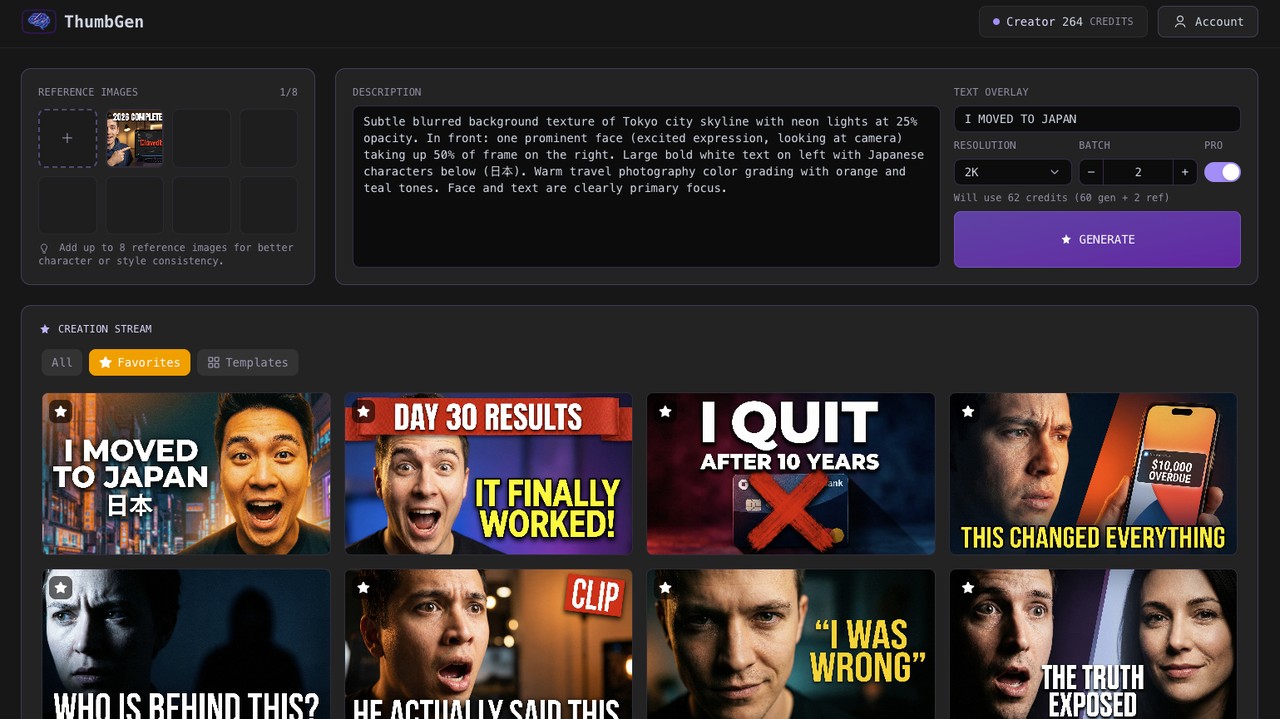
AI thumbnail generators like ThumbGen create thumbnails that are already sized for YouTube. Describe what you want, optionally add reference images for style guidance, and you get a ready-to-upload thumbnail in seconds. This is especially useful when you need to produce thumbnails quickly or want to test multiple variations.
Screenshots from your video can work in a pinch, but they’re almost always 1920x1080 (the video resolution). YouTube will accept this, but you miss the opportunity to create a custom thumbnail that’s specifically designed to get clicks.
Quick Reference Checklist
Before uploading your next thumbnail, check these:
- Dimensions are 1280 x 720 pixels
- Aspect ratio is 16:9
- File is JPG or PNG
- File size is under 2 MB
- Text is readable at small sizes (check on mobile)
- No important content is cut off at the edges
- Faces are visible and expressive (if applicable)
- The image looks distinct from your other recent thumbnails
Getting the technical specs right is the foundation. Once your thumbnails are the right size and format, you can focus on what actually drives clicks: compelling visuals, emotional faces, curiosity-driven text, and strong contrast. The specs are the easy part — the creative work is where the real results come from.
Ready to Create Better Thumbnails?
Try ThumbGen free — generate stunning YouTube thumbnails with AI in seconds.
Get Started Free